
Reading time aprox: 3 minutes, 36 seconds
The What, Why and How of Trackbacks and Pingbacks on WordPress. Another question that a SoloWordPress user has asked was about trackbacks and pingbacks on WordPress.
What are the trackbacks and pingbacks on WordPress
Trackbacks and pingbacks are modes of communication between WordPress blogs, they are normally automatic, but can also be produced manually. Here we will talk about their difference, how they work and how to use them.
What a Trackback is?
Trackbacks give bloggers the ability to communicate between websites. It’s almost as if one person is saying to another, ‘This is something you might be interested in.’
How does it work?
This is how trackbacks work on WordPress:
- You write a post on your blog.
- One of your readers want to comment the post, while wants his own readers to know what he has to say and can comment themselves.
- Then, he will write a post on his own blog and send a trackback to your own blog post. (By default, WordPress does NOT allow you to send manual trackbacks while writing a blog post.)
- You will receive your trackback, and you will choose to show it as a comment or not. The comment display will be a title, an excerpt, and a link to your blog post.
What a mess, right? Don’t worry, keep reading, and you will understand that it is not so.
The What, Why, and How of Trackbacks and Pingbacks on WordPress.
What a Pingback is?
Pingbacks give blogs the ability to communicate through an automated system. It’s almost like remote comments.
How does it work?
This is how pingbacks work on WordPress:
- You write a post on your blog.
- Someone writes a post on their blog mentioning/linking to your article.
- His copy of WordPress will automatically send a pingback to your copy of WordPress.
- Your WordPress will receive the pingback. It will then automatically go to your blog to confirm that the pingback originates there and that the link is present.
- You will then have the ability to display your pingback as a comment. This will only be a link to your site.
- Pingbacks also work within your site. This means that if you link to one of your own articles on the same site, WordPress will automatically send a pingback to itself.
This is called “auto-ping,” and once you start blogging regularly, you may find it annoying. Don’t worry, they can be easily turned off, as we will show you later.
What the difference is between Trackbacks and Pingbacks?
Not much really. They both do the same thing, but they take a slightly different approach. Firstly, they differ in what trackbacks are manual while pingbacks are automatic (different communication technologies). Second, pingbacks do not send any content, while trackbacks are accompanied by an excerpt of the content.
The What, Why, and How of Trackbacks and Pingbacks on WordPress.
How to send Trackbacks and Pingbacks on WordPress
Starting with WordPress 5.0, the ability to manually send a trackback to other blogs has been removed from the post editing screen (the Gutenberg editor). The reason was that trackbacks were not widely used, and WordPress already had automatic pingbacks enabled by default. However, the functionality is still there and is available with the old classic editor. You’ll see this when editing, where you’ll find the option to send trackbacks below the editing area.

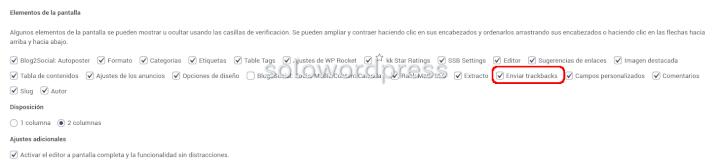
If you can’t find the ‘trackbacks metabox’ in the classic editor, click the “Screen Options” button in the top right corner of the screen. Next, check the box next to the “Submit Trackbacks” option, and WordPress will start displaying the Submit Trackbacks box below the editing area.
How to moderate pingbacks and trackbacks on WordPress?
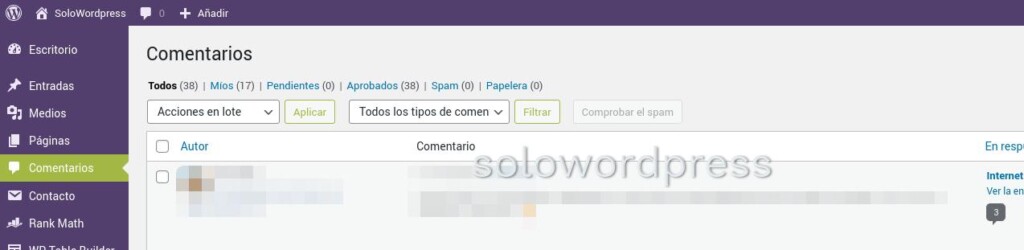
Like with any another comment, moderation is pretty simple. Both trackbacks and pingbacks appear in the comment moderation area. From here, you can approve them, delete them, or mark them as spam.
As per my experience, 99% of all trackbacks and pingbacks are spam. But the worst thing is that this is the easiest way for spammers to get a working link to your site. Sadly, we often see pingbacks from scrappers (content thieves) who copy our entire articles word by word, including all links. The few times we have found trackbacks or pingbacks useful when legitimate bloggers linked to us, they have shown us to be a rather unhelpful job. This is why we have disabled them completely. It’s not worth the time to moderate a thousand spam messages. There are other ways to find out who linked to your articles. The easiest is to use the monitoring tool you use (for example, Google Analytics).
The What, Why, and How of Trackbacks and Pingbacks on WordPress.
Conclusion
Due to the amount of wasteful work that trackbacks can generate, my recommendation is that you disable that feature in your copy of WordPress. Remember that this is as simple as unchecking the settings box next to the “Send trackbacks” option, and WordPress will no longer display the trackback submission box below the editing area. You also have the option to completely disable the possibility of allowing trackbacks and pingbacks in the next articles you write.
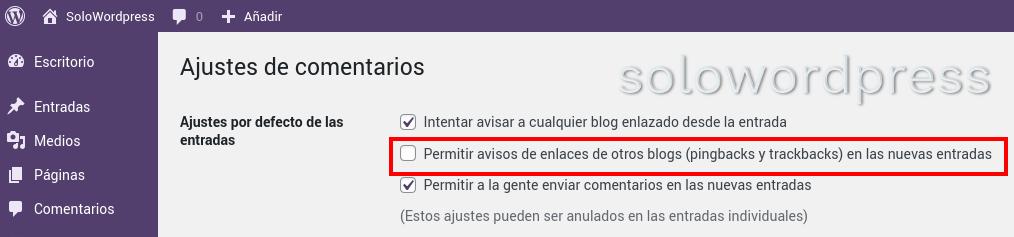
Oh, sure! If you want articles you’ve already written to “don’t allow trackbacks”, you’ll need to edit every one article and disable the trackback submission box below the editing area. If you have a few items, this option is viable, but if you have hundreds or thousands of them… The way to solve this problem is a little more technical, but not very complicated.
How to disable tracebacks for previous articles.
As you know, the easy formula is to install a plugin that performs the task and, to do this, you can find several plugins in the official WordPress repository. If you are a SoloWordPress follower, you will have followed our advice to disable trackbacks as we discussed in the WordPress Hacks List. If so, you won’t have trackbacks to delete; On the contrary, if you have to disable trackbacks ‘after the fact’, you can do it with a simple SQL query. To do this, you must open a session on your SQL server, through phpmyadmin or whatever tool you have designated. Select the database of your copy of WordPress and run the following query lines:
MariaDB [libreria_cf]> UPDATE [your_table_prefix]_posts SET ping_status='closed' WHERE post_status = 'publish' AND post_type = 'post';
MariaDB [libreria_cf]> UPDATE [your_table_prefix]_posts SET ping_status='closed' WHERE post_status = 'publish' AND post_type = 'page';
Log out, you’re done.
The What, Why, and How of Trackbacks and Pingbacks on WordPress.
I hope this is useful to you and remember, #WearMask, #WashHands, play, experiment and, above all, have fun!
Thank you for reading this article! Please "like it" and comment!