Reading time aprox: 2 minutes, 12 seconds
Do you want to learn more about trackbacks and pingbacks in WordPress?
Recently, a user asked us about trackbacks and pingbacks in WordPress. These are essentially modes of communication between WordPress blogs. They have been around since the early days of blogging, but very few users know about these features.
In this article, we will explain trackbacks and pingbacks in WordPress. We will talk about their differences, how they work, and how to use them.
Feel free to use the quick links below to navigate through the different topics in this article:
What Is a Trackback?
A trackback in WordPress is like a friendly message between two websites. When one site mentions or links to a post on another site, it sends a trackback to let the other site know about it. Here’s how it works:
- Let’s say you are writing a WordPress post. In your post, you include a special link called a trackback URL to another post on a different WordPress website. It’s like a secret code found in the linked post’s information.
- When you publish your post, your site sends a trackback to the link you included. This trackback carries details about your post, like its title and a short piece of text.
- The other WordPress site receives your trackback and checks if it’s a valid and relevant link. It acts like a friendly check to see if your post fits well with theirs.
- If everything checks out, the trackback appears in the comments section of the linked post. It looks a bit different from regular comments, usually showing your post’s title and a snippet of its content.
What Is a Pingback?
A pingback in WordPress is an automatic message that one site sends to another when it links to its content. Here is how pingbacks work in WordPress:
- You write a post with a link to another post on a different WordPress site.
- When you publish your post, your WordPress site automatically sends a pingback to the site you linked to. This pingback includes details about your post, like its title and a little bit of text.
- The other WordPress site gets your pingback and checks if the link is good and makes sense. It’s a friendly check to see if your post fits well with theirs.
- If everything looks good, the pingback shows up in the comments section of the linked post as a link to your site.
Pingbacks also work within your site. This means that if you link to one of your own articles on the same site, then WordPress will automatically send a pingback to itself.
This is called self-ping, and once you start blogging regularly, you may find the pings annoying. Don’t worry, they can be easily turned off, as we will show you later in this article.
What Is the Difference Between Trackbacks and Pingbacks?
There isn’t really much difference between pingbacks and trackbacks. They both do the same thing but take a slightly different approach.
The first difference is that the trackbacks are manual, whereas pingbacks are automatic since they use different communication technologies.
Secondly, pingbacks do not send the post’s excerpt, while trackbacks do.
How to Send Trackbacks and Pingbacks in WordPress
Since WordPress 5.0, the ability to manually send a trackback to other blogs has been removed from the block editor screen. Not many users use this feature much, and WordPress already has enabled automatic pingbacks by default.
However, if you use the classic editor, then the functionality is still there. Simply edit a post in the classic editor, and you will find the option to send trackbacks below the edit area.
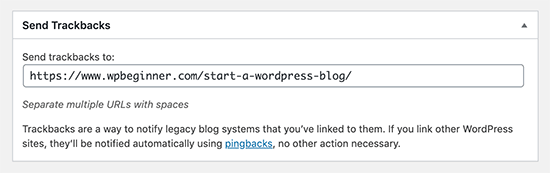
If you cannot find the trackbacks meta box in the classic editor, then click on the ‘Screen Options’ button in the top right corner of the screen.
You need to check the box next to the ‘Send trackbacks’ option, and WordPress will start showing a send trackbacks box below the edit area.